Takeoff User Guide: From PDF Quantity Takeoff to Excel
Takeoff is a next-generation desktop application designed for construction quantity takeoff and cost estimating. The application runs entirely locally on your computer, ensuring outstanding performance and absolute data privacy — your blueprints and project data never leave your local drive.
Takeoff is currently in development. You can join the beta program for free and receive an activation key by email. The beta key works until the software is officially released, after which it stops working. License sales will start later, and beta users will be notified first.
Installation Instructions
Download the installer file from the homepage and run it on your machine:
- Windows x64 only: Run
Takeoff_Setup.exeor.msiand follow the setup wizard instructions. - SmartScreen Warning: The installer is not code-signed. Windows SmartScreen may show a warning. Click "More Info" → "Run anyway" to continue.
- Database: The app automatically creates a local SQLite database in your user application directory (
%APPDATA%/com.tomip.poitakeoff/poitakeoff.db).
2. Scale Calibration
In order to convert pixels measured from drawings into real-world meters and square meters, the drawing viewport must be calibrated. Takeoff supports several advanced calibration methods:
A. Known Distance
Select a segment on the drawing whose actual length is known (such as a door opening or dimension line):
- Click the calibration tool, and click the start point and end point of the known segment on the canvas.
- In the dialog box that appears, enter the real-world length (e.g. 1200 mm or 1.2 m).
- The program calculates the meters-per-pixel ratio immediately.
B. Drawing Scale (Nominal)
If you know the scale of the drawing directly (such as 1:100 or 1:500):
- Select the nominal scale from the list or enter a custom denominator. The program accounts for the PDF rendering scale (renderScale, default 2.0) to compute the correct meters/px ratio mathematically.
C. Asymmetrical Calibration (XY Scale)
If the PDF has been stretched unevenly (different scales along the horizontal and vertical axes):
- You can calibrate the X and Y axes independently by selecting two separate segments or scales, ensuring accurate area and length measurements even on distorted plans.
3. Measuring & Snapping (Dynamic Snap)
Takeoff contains comprehensive visual drawing tools to capture lengths, areas, and counts:
- Polyline: For measuring linear items like partition walls, cabling, or pipelines.
- Polygon: For measuring custom area boundaries such as floor finishes or roof tiling.
- Rectangle: For quickly measuring rectangular areas with just two diagonal clicks.
- Count: For marking and counting individual components like manholes, light fixtures, or doors.
Dynamic Snapping
When drawing a new measurement or dragging an existing vertex (corner point), the pointer automatically snaps to the nearest vertex of previously drawn shapes when within range (10px threshold). This ensures that joint surfaces and wall joins align perfectly, avoiding gaps or overlaps.
On-the-fly Vertex Editing
You can select any existing shape and modify its path directly on the canvas:
- Drag a corner vertex handle to move that point.
- Add a new corner vertex by clicking and dragging the gray midpoint handle displayed halfway along any line segment.
4. PDF Text Search
Takeoff extracts text elements from the PDF in the background and maps them directly to the canvas pixel coordinate space. This enables powerful search features directly on your blueprint:
- Press
Ctrl + For open the search bar from the tool rail. - Enter your query (such as room codes "WC", drain labels "DN110", or annotations).
- The program highlights all matches on the drawing canvas in real time and lists them.
- Clicking a result in the list automatically centers and zooms the viewport on that specific match.
5. Recipe Engine & Formulas
Measuring raw quantities is only half the battle. The core power of Takeoff lies in its flexible Recipe Engine, which links measured geometries directly to construction assemblies and materials.
How a Recipe Works
A recipe represents a construction assembly made of one or more resources (materials, labor hours, equipment rentals). For example, a recipe named "Sewer Pipe Trenching (110mm)" includes:
- Sewer Pipe 110mm: 1.05 m per linear meter of takeoff (5% wastage)
- Geotextile fabric: 2.4 m² per linear meter of takeoff
- Trench gravel: 0.35 m³ per linear meter of takeoff
- Pipe laying labor: 0.25 hours per linear meter of takeoff
Sandbox Formula Engine
You can write custom mathematical formulas for resource yields that reference takeoff metrics (such as length L, area A, or count N) and project parameters (such as trench width or soil type):
The parser runs formulas securely in a math sandbox and highlights syntax errors immediately during entry.
6. Exporting to Excel
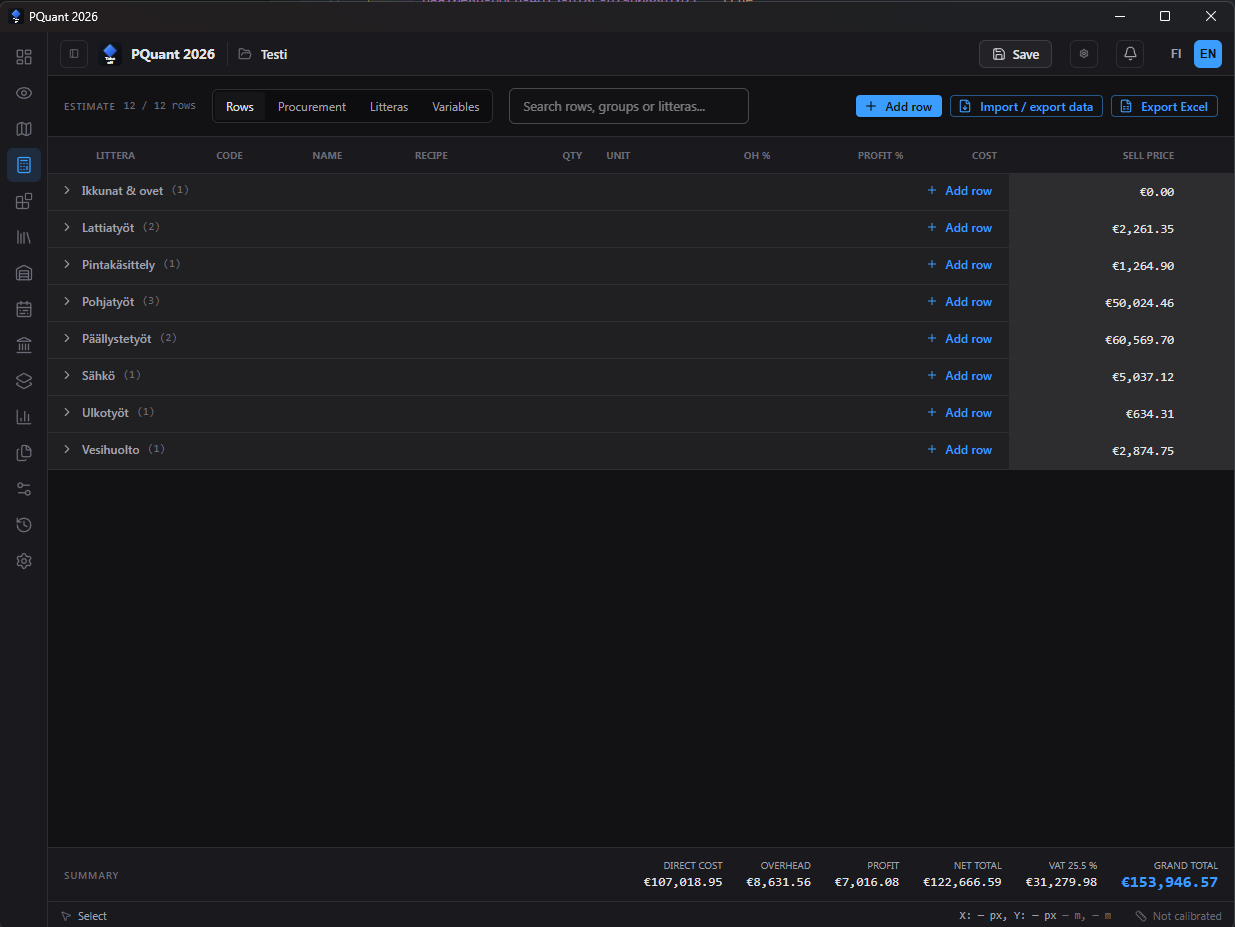
Once quantities are measured and linked to recipes, you can export your entire estimate to Microsoft Excel format in a single click.
- Perpetual Editability: The export creates a clean
.xlsxfile where mathematical formulas, totals, and group hierarchies remain as native Excel formulas rather than flat values. - Easy Customization: Continue refining your markups, pricing, and formatting directly in your preferred spreadsheet app without re-entering data.
7. Collaboration & Cloud Sync
Takeoff is built with modern and flexible team collaboration in mind. Although the software is a local desktop application, it allows seamless cooperation through a shared filesystem and built-in audit tracking without expensive cloud subscription licenses.
A. Cloud Storage Integration (OneDrive, Dropbox, Google Drive)
The application's native storage format is .ptko (a compressed ZIP archive) containing the project's SQLite database, PDF drawings, and local view configurations. Thanks to this architecture:
- You can save and open
.ptkoproject files directly from shared cloud directories (such as your company's shared OneDrive, Dropbox, or SharePoint-synced folder). - When you save your project by clicking Save or pressing
Ctrl + S, the app packages the database and drawings into a single ZIP archive, which is then synchronized to other estimators via the cloud provider. - The program completely closes and releases the SQLite database connection whenever a project is closed or switched, preventing file lock conflicts and ensuring database integrity.
B. Project Roles & Estimator Audit Logs
You can define project administration details to track the team members involved:
- Responsible Estimator & Reviewer: Clearly assign who carries primary responsibility for the quantity takeoff and who is the auditor reviewing the values before the bid submission.
- Measurement-Level Edit History: The application automatically records the name of the last modifier and the timestamp for every single measurement path or count point. The properties panel displays this audit log, showing who created or last adjusted each item and when.
C. Project Home Dashboard & Automated Checklists
The Project Home screen serves as the team's central control panel for the project:
- Team Noticeboard: A free-form bulletin board on the dashboard. Use it to leave notes, guidelines, or notices about plan updates for your team (e.g. "Note: Revision C structural drawings have changed column sizes on floor 2").
- Automated Project Checklist: The system automatically scans the database for missing fields, warning you about uncalibrated viewports, missing contract terms, or approaching bid deadlines.
- Risk Registry: Log, categorize, and prioritize soil, contract, and schedule risks (Low, Medium, High) directly in the project file, ensuring the team prices the estimate with a full view of potential hazards.
8. Payment Milestones & Schedules
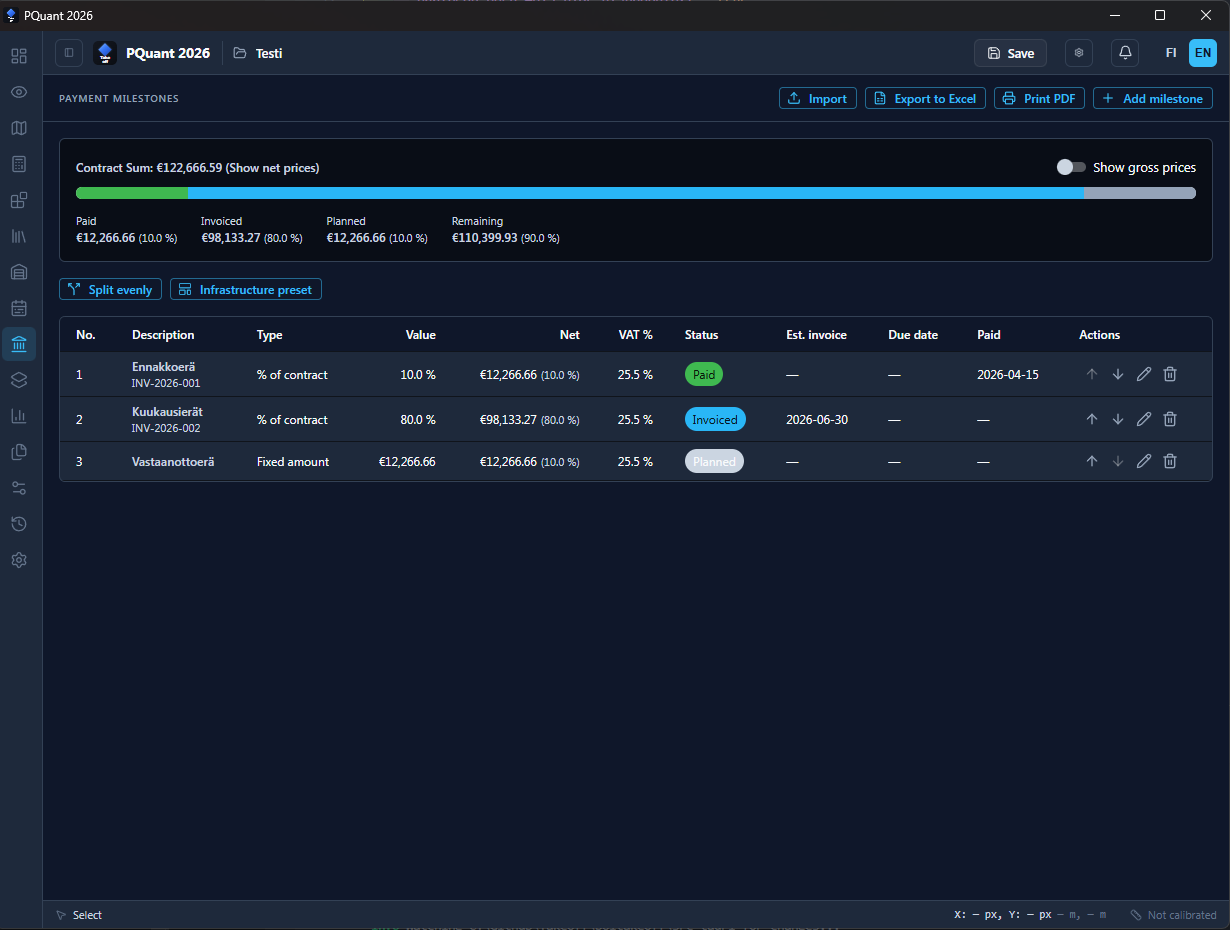
After performing your quantity takeoff and creating a cost estimate, Takeoff allows you to plan and structure your contract payment milestones. This makes cash flow management straightforward and ties billable stages to actual project progress.
Defining & Managing Milestones
You can create and manage payment milestones directly within the Payment Schedule dashboard:
- Name & Description: Give each milestone a clear title (e.g., "Foundations Poured" or "Framing Complete").
- Value or Percentage: Set the milestone's value either in currency or as a percentage of the total project contract. The software computes the corresponding amounts dynamically.
- Link to Takeoff Recipes: Bind milestones to specific estimated items, allowing milestone values to update automatically as your quantities and pricing refine.
Progress Tracking & Billing
As work finishes on-site, mark the corresponding milestone as completed. This maintains an audit log of what has been invoiced and what remains, preventing payment disputes between clients and contractors.
9. Schedule & Gantt Chart
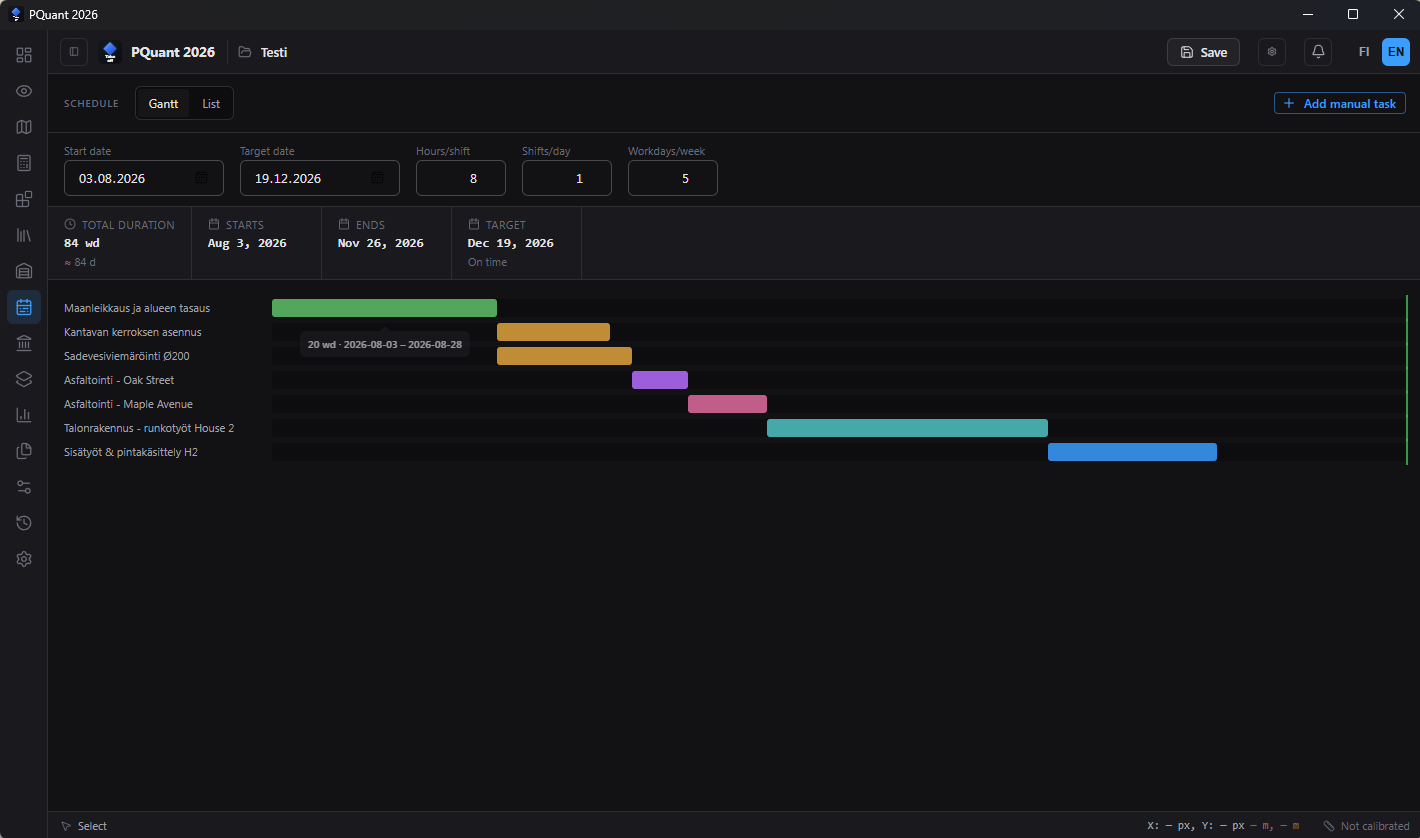
Takeoff includes a visual project scheduling tool with an interactive Gantt chart. You can plan construction phases, define working calendars, and track project progress against your estimates.
Project Timeline Planning
Define the project schedule with flexible parameters:
- Start Date & Target Date: Set the overall project timeline boundaries.
- Working Hours: Configure hours per shift, shifts per day, and workdays per week to match your team's capacity.
- Duration Calculation: The system automatically calculates total duration, start and end dates, and whether the project is on schedule.
Gantt Visualization
The Gantt chart displays each project phase as a colored bar on a timeline:
- Color-coded phases: Each construction activity is shown with a distinct color for quick visual identification.
- Manual tasks: Add custom tasks that aren't tied to recipe estimates for supplementary activities.
- Schedule tracking: Monitor progress against planned dates and identify potential delays early.
10. System Settings & Imperial Units
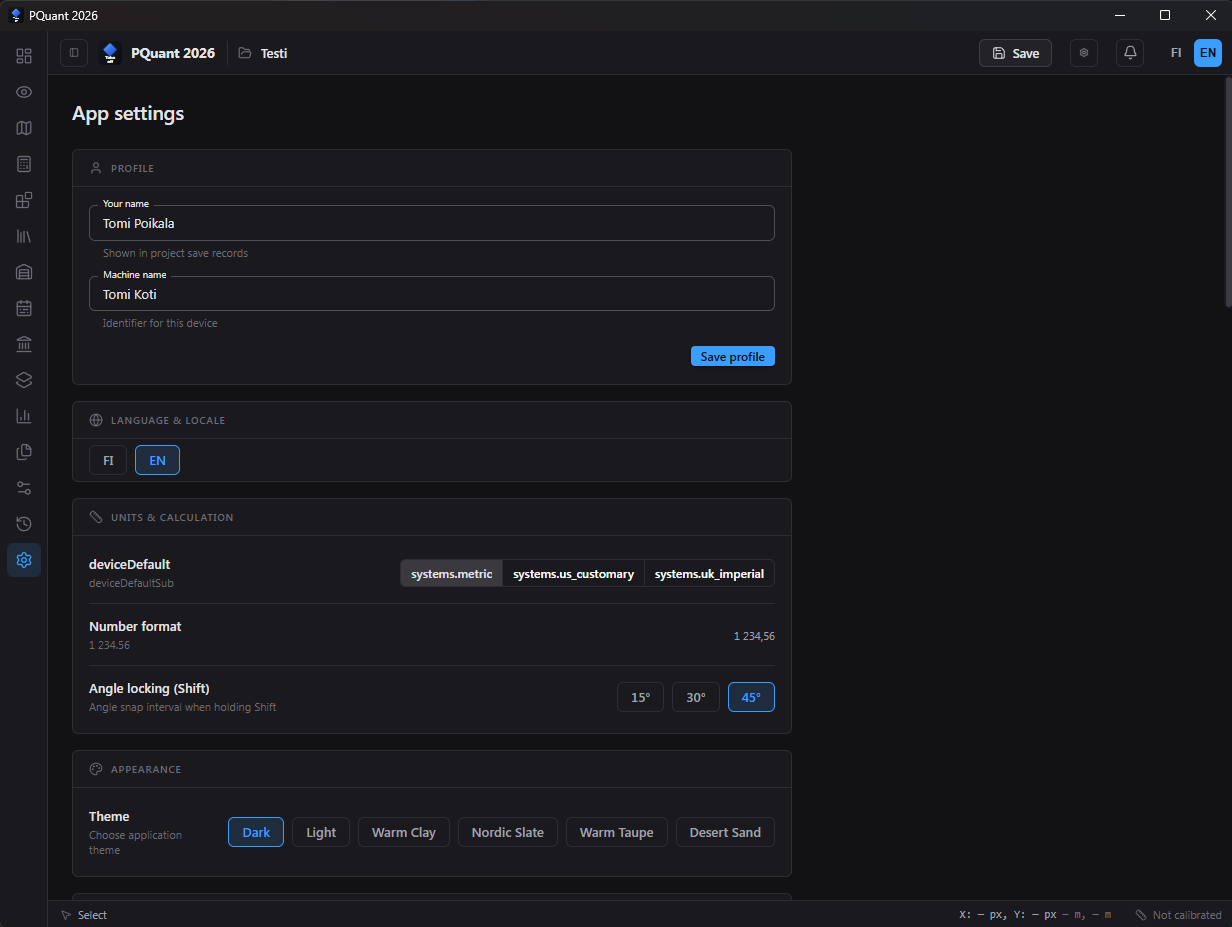
Takeoff is a highly flexible estimator designed for both local work and international procurement. From the settings pane, you can customize your workspace rules to suit the project requirements.
Unit System Selection (Metric vs. Imperial)
If you estimate plans drawn in feet/inches or work for North American clients, toggle your project units to Imperial:
- Metric Units: Meters (m), square meters (m²), cubic meters (m³), and millimeters (mm).
- Imperial Units: Feet (ft), inches (in), yards (yd), square feet (sq ft), and cubic feet (cu ft).
- Automatic Unit Conversion: Switching the unit system converts all previously drawn geometric shapes automatically. There is no need to redraw any polylines or polygons.
Decimal Precision & Rounding
Configure how many decimal places to display in your measurements. You can set independent rounding rules for lengths, areas, and volumes, ensuring your exported Excel spreadsheets stay clean and professional.